How to get live cricket scores on your iPhone Lock Screen
Use a Third Slip Live Activity to keep a cricket score on your iPhone Lock Screen. It updates ball by ball during play, across the Tests, ODIs and T20s we cover.
For a match in play: open it in Third Slip, tap the bolt at the top of the match screen, then choose Start Live Activity. Lock your iPhone to see the score.
What you need
- Install Third Slip on an iPhone running iOS 26.4 or later, then open the app.
- Allow Live Activities for Third Slip in the iPhone Settings app.
- Keep an internet connection for score updates.
A Dynamic Island is optional: the score can appear on your Lock Screen without one. Your first three Live Activities are free; after that, you need Third Slip Premium.
Start a Live Activity for one match
- Open a match that is currently in play and tap the Live Activity button with the bolt icon at the top of the match screen.
- Choose Start Live Activity, then lock your iPhone to see the score.
This starts a Live Activity for that match. For future matches, use an automatic rule or schedule a specific fixture.
Start automatically when your team plays
- In Third Slip, open Settings → Following and choose a team, series or competition you follow.
- Turn on Automatic Live Activities.
You can also open a match, tap the bolt, choose Start Automatically For and select the team or competition. This follows it too if you were not already following.
Following alone adds matches to Home. The Automatic Live Activities switch controls whether their scores appear on your Lock Screen. For international cricket, choose a series for one tour or a competition such as Test cricket for the wider format.
Schedule a match before the first ball
Open an upcoming match, tap the bolt and choose Start When Play Begins. This schedules that match's Live Activity for the start of play, useful when the first ball is overnight in your timezone.
You can cancel it from the same menu with Cancel Scheduled Live Activity.
If the match already starts automatically, the menu can offer Reserve Live Activity for This Match to reserve a free Live Activity for it.
What the Lock Screen score shows
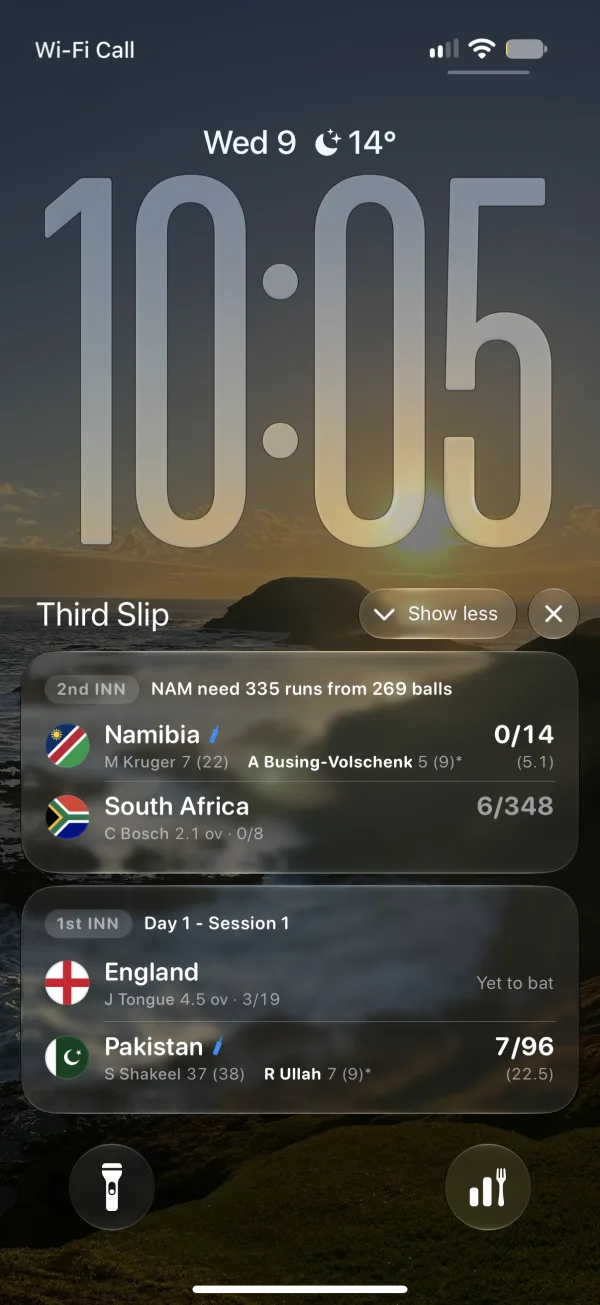
The Live Activity shows innings totals, wickets, overs, current batters, the bowler and match status. A chase can show the runs needed and balls remaining.
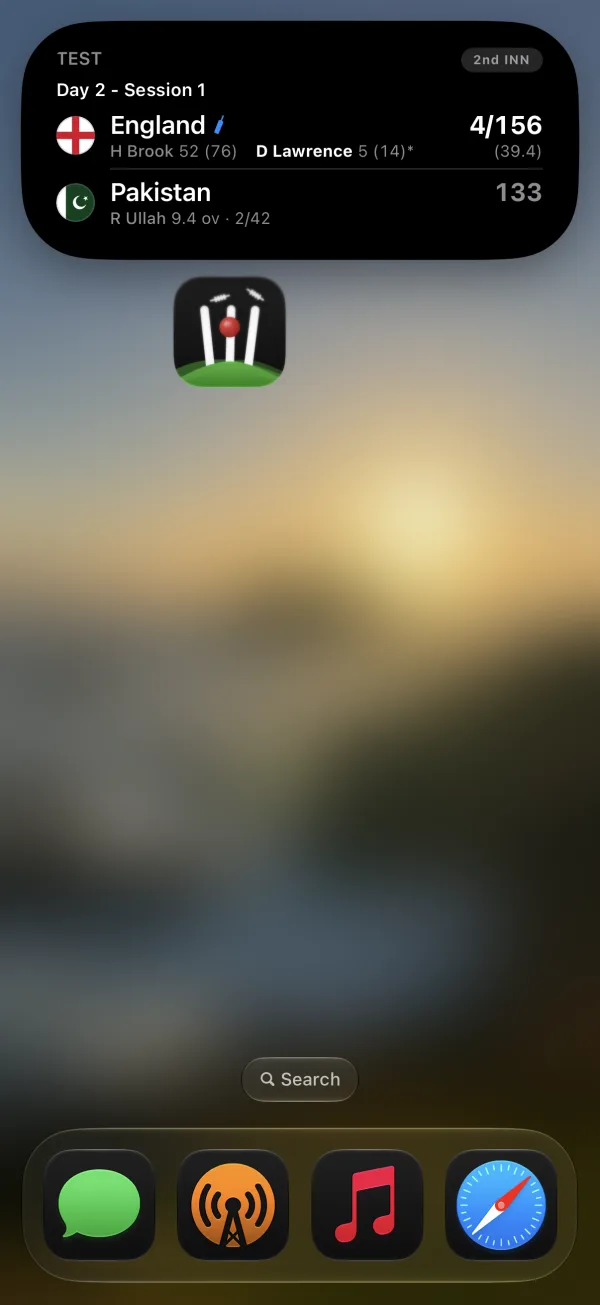
On an iPhone with a Dynamic Island, the running Live Activity can appear there too. The same activity can also appear on Apple Watch and in CarPlay.
What happens during a Test match?
Third Slip splits Tests into separate days. Each day's Live Activity finishes at stumps, and a new one can start for the next day's play. Use Automatic Live Activities for the team or series to follow subsequent days automatically.
Lunch, tea, rain and bad light are named in the match status. A score that pauses during a break does not mean the match has finished.
If the Live Activity does not appear
- Check iPhone permissions: open the iPhone Settings app → Apps → Third Slip → Live Activities, then allow Live Activities. Apple explains where to find these settings.
- Check the match: manual starts are available while play is under way. Before play, use Start When Play Begins. If play has stopped, the menu can offer Start When Play Resumes.
- Check the automatic rule: following a team is separate from turning on Automatic Live Activities for it.
- Check your allowance: automatic and manual starts both need a free Live Activity remaining or Premium.
- Try a manual start: open the live match and tap the bolt. If the app reports too many Live Activities, end another one and try again.
Keep Third Slip and iOS up to date. If the score still will not appear, contact support with the match and what you see.
How to stop a Live Activity
Open the match, tap the bolt and choose Stop Live Activity. To stop future automatic starts as well, turn off Automatic Live Activities for that team, series or competition in Settings → Following.
What it costs
Live scores, scorecards, commentary, fixtures, tables, rankings and news remain free. Your first three Live Activities are free too. Third Slip Premium unlocks unlimited Live Activities after that; current plans and prices appear in the app and on the App Store.
Find a match on our live cricket scores page, or browse IPL fixtures and results and Ashes Tests.
Put the cricket on your Lock Screen
Third Slip is free to download for iPhone.